
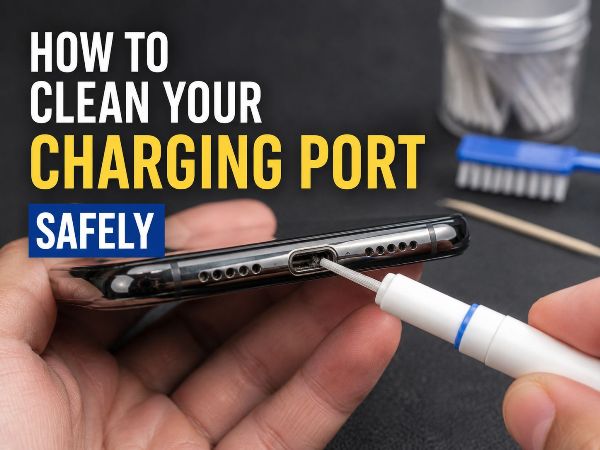
Imagine plugging your phone in after a long day, only to realize the battery percentage hasn’t budged an hour later. You wiggle the cable, flip it over, and try a different outlet—nothing. Before you panic and assume your battery is dead, the culprit is likely much simpler: a tiny collection of pocket lint, dust, and debris wedged inside your charging port.
Your smartphone travels everywhere with you, from dusty pockets to cluttered bags. Over time, the charging port acts like a magnet for grime. When this debris builds up, it creates a physical barrier that prevents the metal pins of your charger from making a solid connection with the phone.
In this guide, you will learn exactly how to clean your charging port safely without causing permanent damage, the tools you should never use, and why making this a monthly habit is the best way to extend the life of your device.
Key Takeaways at a Glance
| Feature | Recommendation |
| Frequency | Once a month for preventative maintenance. |
| Safe Tools | Wooden toothpicks, plastic picks, compressed air (used carefully). |
| Danger Zone | Metal needles, safety pins, or blowing with your mouth. |
| Best Practice | Power off the device before beginning the cleaning process. |
| When to Seek Help | If the port feels “loose” or cleaning doesn’t restore the connection. |
Why Monthly Maintenance Matters for Your Smartphone
Most of us wait until there is a problem before we look at our charging ports. However, waiting until your phone stops charging altogether can lead to unnecessary stress and even hardware damage.
Preventing “Compact Debris”
Every time you force a charging cable into a dirty port, you aren’t just trying to charge; you are physically packing the lint and dust deeper into the back of the socket. Over a few months, this debris becomes “compacted,” turning into a hard layer that is significantly more difficult to remove and can eventually bend the internal pins.
Reducing Heat and Electrical Resistance
A clean connection is an efficient one. When dust or moisture-wicking lint sits in your port, it can create electrical resistance. This might cause the connector to get warmer than usual during a fast-charge cycle. Keeping the area clear ensures your device stays cool and your charging speeds remain optimal.
Saving Money on Repairs
Many users mistakenly believe their battery is failing or the internal port is broken when it’s simply dirty. By cleaning it monthly, you avoid the cost of a replacement and the “fright” of a dead device. It’s the simplest form of preventative smartphone maintenance.
The “Do Not” List: Tools That Can Kill Your Phone
Before we get to the “how-to,” we must address the “how-not-to.” The charging port is one of the most delicate parts of your phone. One wrong move can short-circuit the board or snap a pin.
- Metal Objects: Never use safety pins, needles, or paperclips. Metal conducts electricity and can cause a short. More importantly, metal is harder than the gold-plated pins inside your phone and will scratch or snap them.
- Blowing With Your Mouth: It’s a natural instinct, but your breath contains moisture (tiny droplets of saliva). This moisture can corrode the internal contacts over time or even trip the liquid damage indicator.
- Toothbrushes: While often recommended, the bristles can sometimes get caught or shed, adding more debris to the problem. If you must use one, ensure it is a dedicated, static-free electronic cleaning brush.
Step-by-Step Guide: How to Clean Your Charging Port Safely
Follow these steps to ensure you don’t damage your hardware while clearing out the gunk.
Step 1: Power Down Your Device
Safety first. Turn your phone completely off. This reduces the risk of an accidental short circuit while you are poking around near the electrical contacts.
Step 2: Use Compressed Air First
Before sticking anything into the port, use a can of compressed air. Hold the can upright (never tilt it, or liquid propellant may come out) and use short, controlled bursts. This can often dislodge “loose” dust without any physical contact.
Step 3: The Wooden Toothpick Method
If the air doesn’t work, grab a standard wooden or plastic toothpick.
- Whittle the tip: If the toothpick is too thick, use a small knife to shave the tip into a thinner, flatter point.
- The Gentle Sweep: Insert the pick into the port and gently “scrape” against the bottom and sides. Imagine you are trying to hook a piece of lint.
- Avoid the Pins: On an iPhone (Lightning), the pins are on the sides. On a USB-C device (Android and newer iPhones), the pins are on a small “tongue” in the center. Do not press hard against that center tongue.
Step 4: Use a Flashlight
You cannot clean what you cannot see. Use a bright LED flashlight to peer into the port. A clean port should show the metallic back wall clearly. If you see any dull, grey, or black material, there is still debris inside.
Step 5: Isopropyl Alcohol (Only for Stubborn Grime)
If there is sticky residue (like soda or syrup) in the port, lightly—and we mean very lightly—dampen the end of your pick with 90% or higher Isopropyl alcohol. Do not use water. The alcohol evaporates quickly and helps break down oils.
When Cleaning Isn’t Enough: Identifying Hardware Failure
Sometimes, the issue isn’t dirt. If you’ve cleaned the port and the phone still won’t charge, or if you have to hold the cable at a specific angle to get a connection, you might be facing a hardware issue.
Worn Out Pins
The gold plating on the pins can wear down over years of use. If the pins look dull or black under a magnifying glass, they may no longer be able to conduct electricity.
Loose Port Housing
If the charging cable wiggles significantly when plugged in, the internal solder joints that hold the port to the motherboard may have cracked. This is common if the phone has been dropped while plugged in.
Faulty Charging Cable
Always test your phone with a known working cable and wall adapter before assuming the port is the problem. Choosing a high-quality charging cable is essential to avoid damaging your port with out-of-spec connectors.
Frequently Asked Questions (FAQ)
Can I use a vacuum cleaner to suck out the dust?
It is generally not recommended. Standard household vacuums can create significant static electricity, which can fry sensitive electronic components. Stick to compressed air or manual cleaning.
Is it safe to use a toothbrush and rubbing alcohol?
A soft-bristled toothbrush with a tiny amount of 90%+ Isopropyl alcohol is safe for the outer edges, but be careful not to leave bristles inside the port. Never use “rubbing alcohol” that is 70% or lower, as it contains too much water.
Why does my phone say “Liquid Detected” after cleaning?
If you used a cleaning solution or blew into the port with your mouth, the sensors may have detected moisture. Leave the phone in a dry area with the port facing down for 2-4 hours. Do not plug it in until the warning disappears.
How often should I check my port?
For most people, once a month is the “sweet spot.” However, if you work in a high-dust environment (like construction) or keep your phone in a purse with many items, a bi-weekly check is better.
Professional Help for Smartphone Emergencies
Sometimes, the “DIY” route isn’t enough. If you’ve tried cleaning your port and your phone still refuses to charge, or if you are afraid of damaging the delicate internal components, it is time to consult the experts.
If you are in the South Orange County area, don’t let a dead battery ruin your day. Phonebulance is your premier professional emergency smartphone repair center. Whether it’s a stubborn charging port, a cracked screen, or a battery that won’t hold a charge, our expert technicians provide fast, reliable service to get you back online.
Contact Phonebulance today for a professional diagnostic and get your device charging like new again!


Phonebulance is your one-stop center for all things smartphone! Whether you’ve cracked your screen, dropped it in water, or it’s simply acting sluggish, our certified technicians can diagnose and fix a wide range of issues.
Contact us today or make an online appointment to learn more about our services and keep your smartphone connected and functioning like new!
Here is the list of our smartphone repair services:
- Apple iPhone
- Apple Watch
- Apple iPad
- Apple iPod
- Samsung Galaxy S Series
- Samsung Galaxy Note Series
- Samsung Galaxy Tab
- Google Pixel and Nexus
- OnePlus
- Other brands (LG, Motorola, HTC, Blackberry…)
Here is the list of our repair and fixing prices:
- iPhone LCD Screen Replacement
- iPhone Charging Port Replacement
- iPhone Battery Replacement (High Capacity)
- iPad Screen Replacement
- iPhone Back Camera Lens Replacement
- iPhone Rear Camera Repair
- iPhone Back Glass Repair Cost
Service Areas in Orange County South:
0 Comments