
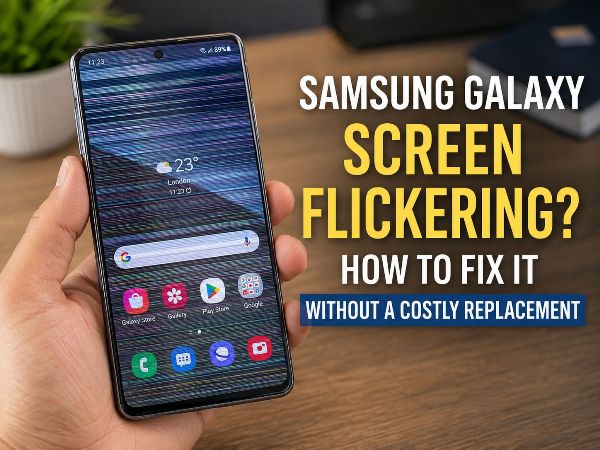
Is your Samsung Galaxy screen acting like a strobe light? One minute you’re scrolling through your feed, and the next, your display is blinking, glitching, or showing strange lines. Before you panic and start looking up the cost of a brand-new screen—which can easily run you hundreds of dollars—take a deep breath.
Samsung Galaxy screen flickering is a frustratingly common issue, but it doesn’t always mean your hardware is dead. Often, the culprit is a software bug, a rogue app, or a simple setting that’s gone haywire. In this guide, we will walk you through the exact steps to troubleshoot and fix your screen flickering at home, saving you time and a hefty repair bill.
Key Takeaways at a Glance
| Potential Cause | Quick Fix Solution | DIY Success Rate |
| Software Glitches | Force Restart & System Update | High |
| Adaptive Brightness | Disable in Display Settings | Medium |
| Refresh Rate Issues | Switch to Standard (60Hz) | Medium |
| App Conflicts | Test in Safe Mode | High |
| Corrupt Cache | Wipe Cache Partition | Medium |
Why is My Samsung Screen Flickering?
Understanding the “why” is the first step to the “how.” In most modern Galaxy devices, from the S21 series to the latest S26 Ultra, screen flickering usually stems from one of three areas:
- Software Bugs: A recent Android or One UI update might have introduced a display driver conflict.
- Display Settings: High refresh rates (120Hz) or Adaptive Brightness can sometimes cause the GPU to “stutter.”
- Third-Party Apps: Poorly coded apps can interfere with how the screen renders images.
- Physical Damage: While we aim for a software fix, small drops can loosen internal cables.
Let’s dive into the step-by-step solutions to get your display back to normal.
Step 1: The “Universal Fix” – Force Restart your Galaxy
It sounds too simple, but a force restart clears the temporary memory (RAM) and stops all background processes that might be causing a display loop.
- How to do it: Press and hold the Volume Down and Power/Side buttons simultaneously for about 10–15 seconds.
- The Result: Your phone will vibrate and reboot. Check if the flickering persists once the home screen loads.
Step 2: Adjust Display Settings (The Hidden Culprits)
Modern Samsung screens use advanced technology like Adaptive Brightness and Variable Refresh Rates. Sometimes, these features struggle to communicate with the hardware.
Disable Adaptive Brightness
Adaptive brightness uses the ambient light sensor to adjust your screen. If the sensor is dirty or the software is glitchy, the screen may rapidly change brightness, mimicking a flicker.
- Go to Settings > Display.
- Toggle Adaptive Brightness to Off.
- Manually adjust the slider to a comfortable level.
Change Motion Smoothness (Refresh Rate)
Many users find that flickering occurs specifically when the screen is set to “Adaptive” 120Hz.
- Go to Settings > Display > Motion Smoothness.
- Select Standard (60Hz) and tap Apply.If the flickering stops, it indicates a software-to-hardware sync issue with the high refresh rate.
Step 3: Rule Out Rogue Apps with Safe Mode
If your screen only flickers when using certain apps or after installing a new game, a third-party app is likely the villain. Safe Mode allows you to run the phone with only the original system apps.
How to Enter Safe Mode:
- Power off your device.
- Turn it on, and when the Samsung logo appears, press and hold the Volume Down button.
- “Safe Mode” will appear in the bottom-left corner.
The Test: Use your phone for a few minutes. If the screen does not flicker in Safe Mode, one of your downloaded apps is the cause. Start uninstalling your most recent apps one by one until the problem disappears.
Step 4: Wipe the Cache Partition
After a major system update, old files left in the “Cache Partition” can become corrupt. This doesn’t delete your photos or messages, but it cleans up the “junk” that might be interfering with your display drivers.
- Turn off your phone.
- Connect it to a computer via USB cable (this is required for newer models to enter Recovery Mode).
- Press and hold Volume Up + Power until the recovery menu appears.
- Use the volume buttons to highlight Wipe Cache Partition and the Power button to select it.
- Select Yes, then select Reboot System Now.
Step 5: Check for Software Updates
Samsung frequently releases “Hotfix” patches for display issues. Even if your phone says it’s up to date, manually checking can sometimes trigger a pending update.
- Navigate to Settings > Software Update > Download and Install.
When the DIY Fixes Aren’t Enough
If you have tried a factory data reset (the nuclear option) and the flickering continues, you are likely dealing with a hardware defect. This could be a loose Flex Cable (the ribbon connecting the screen to the motherboard) or a failing OLED panel.
Trying to fix hardware yourself is risky; one wrong move can permanently kill the motherboard or compromise the water resistance of your device.
Professional Help in South Orange County, CA
If you’ve reached the end of your rope and your Samsung screen is still glitching, it’s time to call in the pros. For residents in Laguna Niguel, Mission Viejo, or Aliso Viejo, you don’t have to wait days for a mail-in repair.
Phonebulance is South Orange County’s premier emergency smartphone repair center. They specialize in high-end Samsung Galaxy repairs, offering:
- Rapid Diagnostics: Identifying if it’s a loose cable or a dead panel in minutes.
- OEM-Quality Parts: Ensuring your replacement screen looks and feels like the original.
- Expert Technicians: Professionals who handle your device with the care it deserves.
Don’t let a flickering screen ruin your day or force you into buying a new $1,200 phone. Whether you need a quick technical consultation or a full screen replacement, the team at Phonebulance is ready to help.
Contact Phonebulance Today:
- Location: 30100 Crown Valley Pkwy, Suite 11-10, Laguna Niguel, CA 92677
- Phone: (949) 424-3130
- Website: Phonebulance.com
Frequently Asked Questions (FAQ)
1. Will a factory reset fix a flickering screen?
If the flickering is caused by a deep system software conflict, a factory reset will likely fix it. However, if the issue is hardware-related (like a damaged OLED), a reset will not help. Always back up your data before resetting.
2. Can a screen protector cause flickering?
A poorly fitted or dirty screen protector won’t usually cause “flickering,” but it can interfere with the proximity sensor or touch sensitivity, making the screen behave erratically. Try cleaning the top edge of your phone where the sensors are located.
3. My screen flickers only when charging. Why?
This is often caused by “electrical noise” from a faulty charging cable or a low-quality third-party wall adapter. Try using an official Samsung charger to see if the flickering stops.
4. Is screen flickering covered under Samsung warranty?
Yes, if there is no evidence of physical or water damage, screen flickering is often considered a manufacturing defect and should be covered under Samsung’s one-year limited warranty.
Conclusion
A flickering Samsung Galaxy screen is annoying, but it isn’t always a death sentence for your device. By methodically moving through software restarts, display setting adjustments, and cache cleaning, most users can resolve the issue without spending a dime.
However, if your screen remains stubborn, don’t risk further damage. Reach out to Phonebulance in Laguna Niguel for a professional, reliable, and fast solution to get your Galaxy back to its vibrant, flicker-free self!
 Phonebulance is your one-stop centerWant to get the most out of your iPhone? At Phonebulance, we’re your one-stop center for all things smartphone! Whether you’ve cracked your screen, dropped it in water, or it’s simply acting sluggish, our certified technicians can diagnose and fix a wide range of issues. Contact us today or make an online appointment to learn more about our services and keep your smartphone connected and functioning like new!Here is the list of our smartphone repair services:
- Apple iPhone
- Apple Watch
- Apple iPad
- Apple iPod
- Samsung Galaxy S Series
- Samsung Galaxy Note Series Samsung Galaxy Tab
- Google Pixel and Nexus
- OnePlus
- Other brands (LG, Motorola, HTC, Blackberry…)
Here is the list of our repair and fixing prices:
- iPhone LCD Screen Replacement
- iPhone Charging Port Replacement
- iPhone Battery Replacement (High Capacity)
- iPad screen replacement
- iPhone Back Camera Lens Replacement
- iPhone Rear Camera Repair
- iPhone Back Glass Repair Cost
Service Areas in Orange County South:
0 Comments