
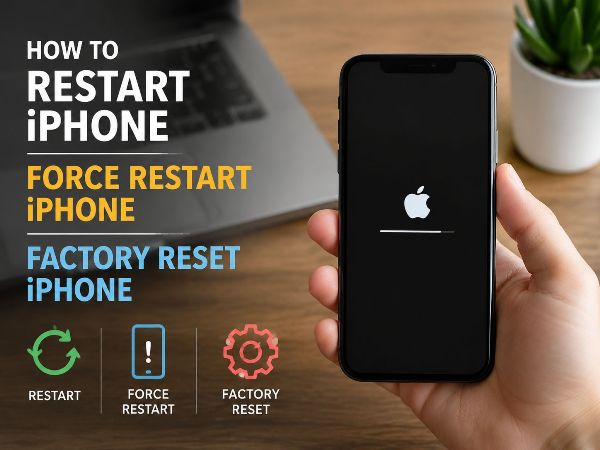
When an iPhone freezes, drops its network connection, or prepares for a new owner, knowing the exact combination of hardware buttons can save hours of frustration. However, Apple has changed these physical button sequences multiple times over the years. Executing the wrong sequence can lead to unintended actions, like accidentally triggering Emergency SOS or simply taking endless, repetitive screenshots.
This professional technical guide provides the exact engineering steps to safely restart, force restart, or factory reset any iPhone ever made—from the latest flagship models to legacy devices.
Key Takeaways
| Core Insight | Practical Impact |
| Standard Restart vs. Force Restart | A standard restart performs a graceful software shutdown. A force restart cuts power at the hardware level, which is necessary if the touch screen is completely frozen or black. |
| The “3-Button Dance” Rule | For iPhone 8 and all newer models (including Face ID devices), forcing a restart requires a precise, sequential button pattern—not holding buttons down together. |
| Data Retention Realities | Standard and force restarts will never delete your data. A factory reset permanently wipes the storage keys, making data recovery impossible without an iCloud or local computer backup. |
The Core Definitions: Standard, Force, and Factory Reset
Professionals commonly see users confuse these three distinct procedures, occasionally leading to unintended data loss.
- Standard Restart (Soft Reset): The operating system gracefully closes background processes, clears temporary system caches, and writes system logs to disk before shutting down safely.
- Force Restart (Hard Reset): A hardware-enforced power cycle. It completely bypasses the iOS operating system software layers, instantly cutting power from the battery to the logic board. Use this only when the screen is entirely frozen, unresponsive, or black.
- Factory Reset (Erase All Content): A destructive administrative command that clears the hardware encryption keys, wipes all user partitions, and returns the device software to its original factory state.
1. How to Standard Restart Any iPhone
If your touch screen is working normally, always use a standard soft restart. This protects open system files from fragmentation.
For iPhones with Face ID (iPhone X, 11, 12, 13, 14, 15, 16, and Newer Series)
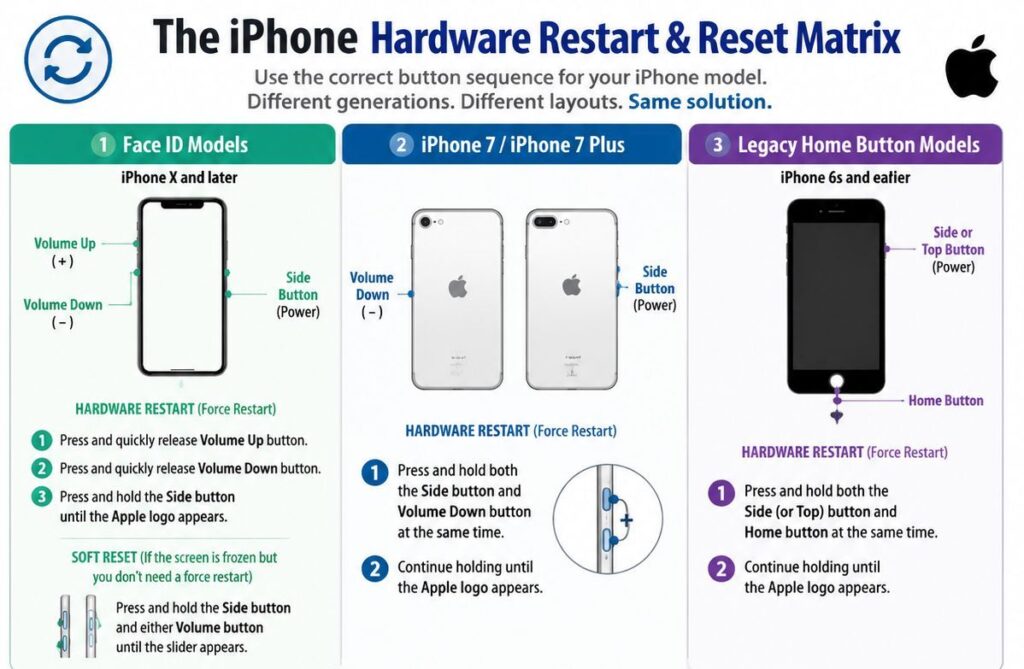
- Press and hold the Side button (right side) and either Volume button (left side) simultaneously.
- Release both buttons when the slide to power off slider appears at the top of the screen.
- Drag the slider to the right and wait roughly 30 seconds for the device to turn off completely.
- To turn it back on, press and hold the Side button until the white Apple logo appears.
For iPhones with a Home Button (iPhone 6, 7, 8, and SE 2nd/3rd Gen)
- Press and hold the Side button until the power-off slider shows on your screen.
- Slide the onscreen switch and wait 30 seconds.
- Turn the phone back on by pressing and holding the Side button until you see the Apple logo.
2. How to Force Restart Every iPhone Model
When the operating system stops responding to physical touch or inputs, a standard soft restart is impossible. Use these hardware overrides instead.
The Modern Method: iPhone 8, X, 11, 12, 13, 14, 15, 16, and SE (2nd/3rd Gen)
A frequent mistake is holding the volume and power buttons down at the same time. On modern devices, holding these buttons will trigger the Emergency SOS countdown instead of restarting. You must execute this sequence as a rapid succession of individual steps:
- Volume Up: Press and immediately release the Volume Up button on the left side of the device.
- Volume Down: Press and immediately release the Volume Down button on the left side.
- Side Button: Press and hold the Side Power button on the right side. Do not let go when the screen turns black or when the power-off slider appears.
- Apple Logo Return: Keep holding the Side button for roughly 10 to 15 seconds until the physical Apple logo appears on the screen, then release it.
The Legacy Method: iPhone 7 and iPhone 7 Plus
Because the iPhone 7 series uses a software-driven, capacitive solid-state Home button, the Home button cannot register a reset when iOS is frozen.
- Press and hold both the Side button and the Volume Down button at the exact same time.
- Continue holding both hardware buttons until the Apple logo displays on the screen, then release them.
The Classic Method: iPhone 6s, SE (1st Gen), and All Earlier Models
- Press and hold both the physical Home button and the Side/Top Power button simultaneously.
- Hold both components until the Apple logo illuminates on the black screen.
3. How to Factory Reset Your iPhone Safely
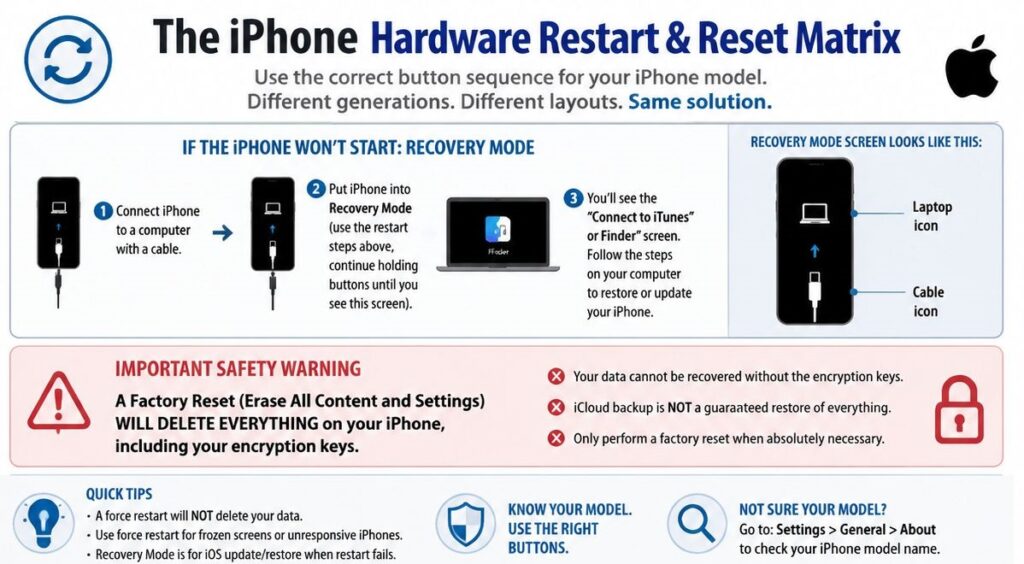
Before performing a factory reset, ensure your data is backed up to iCloud or a computer. A reset completely removes your cryptographic keys, meaning any unbacked-up data is permanently unrecoverable.
On-Device Factory Reset (Settings Menu)
If your phone is functioning normally and you want to erase it for trade-in or troubleshooting, follow these steps:
- Open Settings and navigate to General.
- Scroll to the bottom and select Transfer or Reset iPhone.
- Choose Erase All Content and Settings.
- Select Continue and enter your device passcode when prompted.
- Provide your Apple Account password to disable Find My activation locks.
- If using an eSIM, choose whether to keep or delete the cellular profile.
- Confirm the erasure and wait for the screen to show the multi-lingual “Hello” screen.
Desktop Fallback Reset (Recovery Mode)
If your phone is frozen on an Apple logo loop, or you forgot your lock screen passcode, you must perform a hardware factory reset using a desktop computer.
- Connect your iPhone to a computer via a certified USB cable.
- Open Finder (on macOS Catalina or newer) or the Apple Devices / iTunes app (on Windows).
- Trigger Recovery Mode using the hardware buttons:
- iPhone 8 or newer: Press Volume Up, press Volume Down, then press and hold the Side button. Keep holding until a computer cable icon appears.
- iPhone 7 series: Hold the Side and Volume Down buttons together until the recovery screen appears.
- iPhone 6s or older: Hold the Home and Top/Side buttons together until the recovery screen appears.
- On your desktop screen, a prompt will appear stating there is a problem with the device. Click Restore. This will download fresh firmware, wipe all user data, and flash a clean version of iOS.
Diagnostic Troubleshooting Matrix
In many real-world situations, a simple restart won’t fix underlying hardware faults. Use this diagnostic framework to decide your next steps:
| Observed Symptom | Primary Suspect | Recommended Action Path |
| Screen is black; phone vibrates or makes sound. | Defective OLED/LCD Digitizer Panel or Backlight Failure. | Hard force restart. If symptom persists, professional screen replacement is required. |
| Stuck permanently on white Apple Logo. | Corrupted iOS system files, full system storage, or failing logic board NAND flash. | Plug into a computer and perform a Recovery Mode Restore. |
| Power slider appears but screen touch fails to track. | Disconnected digitizer flex cable or localized chip failure. | Force restart via hardware buttons. If unresolved, requires internal physical inspection. |
| Rapid battery drain following a hard restart. | Battery indexing or degraded cells. | Check Battery Health under Settings. If maximum capacity is less than 80%, plan for service. |
Frequently Asked Questions
Will forcing my iPhone to restart delete my photos or text messages?
No. A force restart simply cuts power at the hardware level to force the main logic board processors to reload. It acts exactly like pulling the power plug on a desktop computer. All user partitions, app databases, personal photos, and settings remain untouched on your internal storage.
My iPhone is completely dead and won’t respond to a force restart. What should I do next?
Connect your device to a verified wall charger using a known-working Apple original or MFi-certified cable. Allow it to sit uninterrupted for at least 30 minutes. Frequently, a deeply discharged lithium-ion battery requires a baseline charge period before it can display the low-battery icon or initialize the logic board boot sequence. If it still remains inert, it likely suffers from physical hardware failure.
What is the practical difference between “Reset All Settings” and a factory reset?
“Reset All Settings” is non-destructive to user media. It clears system preferences like Wi-Fi passwords, Bluetooth pairings, Apple Pay cards, and location permissions, but leaves your photos, apps, and accounts intact. A factory reset (“Erase All Content and Settings”) wipes your cryptographic keys and fully sanitizes the storage drive, erasing every single byte of personal data.
Can I factory reset my iPhone if I forgot my Apple Account password?
You cannot perform an on-device reset through the Settings app without providing your Apple Account password, as this is Apple’s built-in anti-theft measure. To bypass this screen, you must put the phone into Recovery Mode manually and use a trusted computer via Finder or iTunes to execute a full system restore. Note that upon rebooting, you will still need to log into the original Apple Account to clear the Activation Lock.
Conclusion
Mastering standard restarts, force restarts, and factory restores gives you complete control over your iPhone’s behavior. These built-in maintenance routines clear deep software bugs and resolve device freezes safely.
However, if your iPhone fails to reboot, continues looping on the Apple logo, or has a completely black display even after a successful hardware force reset, your device may be dealing with internal physical damage or component degradation.
When software overrides aren’t enough, skip the guesswork and contact the micro-soldering and diagnostic specialists at phonebulance.com for certified, professional hardware support throughout South Orange County.
This guide was prepared using trusted industry sources and reviewed for accuracy, clarity, and usefulness.


Phonebulance is your one-stop center for all things smartphone! Whether you’ve cracked your screen, dropped it in water, or it’s simply acting sluggish, our certified technicians can diagnose and fix a wide range of issues.
Contact us today or make an online appointment to learn more about our services and keep your smartphone connected and functioning like new!
Here is the list of our smartphone repair services:
- Apple iPhone
- Apple Watch
- Apple iPad
- Apple iPod
- Samsung Galaxy S Series
- Samsung Galaxy Note Series
- Samsung Galaxy Tab
- Google Pixel and Nexus
- OnePlus
- Other brands (LG, Motorola, HTC, Blackberry…)
Here is the list of our repair and fixing prices:
- iPhone LCD Screen Replacement
- iPhone Charging Port Replacement
- iPhone Battery Replacement (High Capacity)
- iPad Screen Replacement
- iPhone Back Camera Lens Replacement
- iPhone Rear Camera Repair
- iPhone Back Glass Repair Cost
Service Areas in Orange County South:

0 Comments