
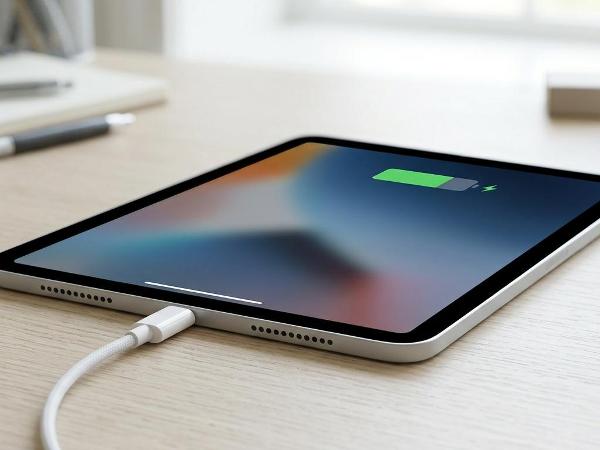
There is nothing quite as frustrating as plugging in your iPad at the end of a long day, only to wake up the next morning and find the screen still black or the battery percentage stuck at a dismal 2%. Whether you use your iPad for professional design work, school assignments, or simply catching up on your favorite shows, a device that refuses to take a charge is a major roadblock.
When your iPad won’t charge, your mind might immediately jump to the worst-case scenario: a dead battery or a broken device that requires an expensive replacement. However, in many cases, the culprit is something far simpler—like a bit of pocket lint or a faulty wall adapter.
In this comprehensive guide, we are going to walk you through 7 proven troubleshooting steps to diagnose and potentially fix your iPad’s charging issues. We’ll cover everything from the simplest cable checks to deeper software resets. If these DIY steps don’t solve the problem, we’ll explain when it’s time to seek help from a professional iPad repair center.
Key Takeaways at a Glance
| Step | Action Item | Difficulty Level |
| 1 | Inspect and Swap Charging Cables/Adapters | Easy |
| 2 | Safely Clean the iPad Charging Port | Easy |
| 3 | Check for Environmental Factors (Heat/Cold) | Easy |
| 4 | Perform a Hard Reset (Force Restart) | Medium |
| 5 | Update iPadOS via a Computer | Medium |
| 6 | Test for “MFi” Compatibility | Easy |
| 7 | Identify Internal Hardware/Battery Failure | Advanced |
1. Eliminate the Usual Suspects: Cable and Adapter
The most common reason an iPad won’t charge isn’t the iPad itself; it is the accessories you are using to power it. Over time, charging cables undergo significant “stress at the neck”—the point where the wire meets the plug. Internal fraying can occur even if the external rubber looks intact.
Test Your Cable
First, try a different cable. If you are using a third-party cable, try switching to an official Apple USB-C or Lightning cable. If the iPad suddenly begins to charge, you’ve found your culprit. It is also important to look for iPad charging cable not working symptoms, such as the iPad cycling on and off or showing the “Accessory Not Supported” message.
Check the Power Source
Are you charging via a wall outlet, a laptop USB port, or a power bank? iPads require more “juice” (amperage) than iPhones. If you are plugging your iPad into an old, low-wattage iPhone “cube” or a weak USB port on a keyboard, it may charge very slowly or not at all.
- Pro Tip: Always use a wall outlet with a high-wattage adapter (at least 12W for older iPads, or 20W+ for newer Pro and Air models) for the best results.
2. How to Safely Clean iPad Charging Port
If your cable is fine, the next step is to look inside the device. Your iPad spends a lot of time in bags, covers, and on various surfaces where dust, lint, and debris can settle. Over time, every time you plug in your cable, you are essentially “compacting” that debris into the back of the port.
Eventually, this layer of grime prevents the metal pins on the cable from making a solid electrical connection with the pins inside the iPad.
Steps to Clean Your Port
- Power down the iPad: This prevents any accidental shorts.
- Use a non-metallic tool: A wooden toothpick or a plastic dental pick is ideal. Never use a metal needle or paperclip, as this can permanently damage the delicate pins.
- Gently scrape: Insert the tool and gently move it around the edges to loosen lint.
- Compressed air: Give it a few short bursts of compressed air to blow out the loosened particles.
If you find that your cable feels “wobbly” or doesn’t click into place, a deep clean iPad charging port session usually solves the problem.
3. Consider Temperature and Environmental Factors
Did you leave your iPad in a hot car? Or perhaps you’re trying to charge it in a very cold garage? Lithium-ion batteries are extremely sensitive to temperature.
Apple devices are designed to stop charging if the internal temperature exceeds a certain threshold to prevent permanent battery degradation or fire hazards. If your iPad is too hot, you may see a warning on the screen, or it may simply refuse to charge past 80%.
The Fix: Move the iPad to a room-temperature environment (around 68°F or 20°C). Let it sit for 30 minutes before trying to charge it again. Do not try to speed up the process by putting it in a fridge—this can cause internal condensation, which is far worse for the electronics.
4. Perform a Hard Reset (Force Restart)
Sometimes, the hardware is fine, but the software responsible for managing the charging process has crashed. This is more common than you might think. Even when your iPad is “off,” a small part of the software (the Power Management IC) is still running to detect the charger.
How to Hard Reset your iPad
- Models with a Home Button: Press and hold both the Home button and the Top (Power) button simultaneously. Keep holding until the Apple logo appears on the screen, then release.
- Models without a Home Button (FaceID or TouchID on Top Button): Press and quickly release the Volume Up button.
- Press and quickly release the Volume Down button.
- Press and hold the Top (Power) button until the Apple logo appears.
A hard reset iPad procedure doesn’t delete your data; it simply forces the hardware to reboot, which can “wake up” the charging logic.
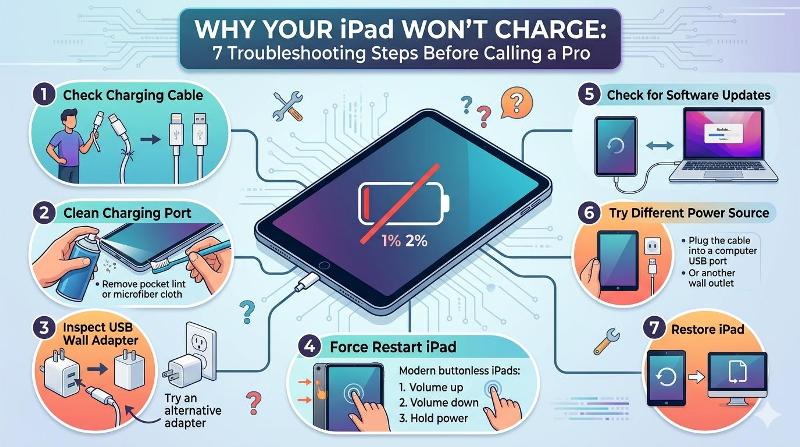
5. Software Updates and Recovery Mode
If the hard reset didn’t work, there might be a deeper corruption in the iPadOS. Sometimes, an update fails in the background, leaving the charging drivers in limbo.
Connect to a Computer
Plug your iPad into a Mac or a Windows PC with the latest version of iTunes (or Finder on macOS). If the computer recognizes the iPad, even if the iPad screen is black, there is hope!
- Try to Update the iPad through the computer interface. This will attempt to reinstall the operating system without wiping your photos or apps.
- If that fails, you may need to enter Recovery Mode to perform a factory restore. Note: Ensure you have a backup, as a restore will erase the device.
6. The Danger of Non-MFi Accessories
You might have picked up a cheap charging cable at a gas station or a discount store. While these look identical to Apple cables, they often lack the “MFi” (Made for iPhone/iPad) authentication chip.
Apple uses this chip to regulate voltage. If the chip is missing or counterfeit, the iPad may reject the charge to protect the lithium-ion battery from a surge. If your iPad won’t charge only with a specific “cheap” cable, throw it away. Using non-certified chargers is a leading cause of iPad charging port repair needs because they can actually “burn” the pins inside the port.
7. Identifying Hardware Failure: Is it the Battery or the Port?
If you have tried different cables, cleaned the port, and performed a hard reset, but your iPad won’t charge, you are likely looking at a hardware failure. This usually falls into two categories:
iPad Battery Replacement
Lithium-ion batteries are consumables. They have a limited number of charge cycles (usually around 1,000 for an iPad). If your iPad is 4–5 years old, the battery may have simply reached the end of its life. Signs of this include the iPad only working when plugged in or the screen bulging (a sign of a swollen battery).
iPad Charging Port Repair
If the port itself is loose, or if a pin has broken off inside, no amount of cleaning will fix it. This requires a professional technician to open the device and either solder a new port onto the logic board or replace the port assembly. This is a delicate procedure that should never be attempted as a DIY project unless you have professional micro-soldering experience.
When to Call a Pro
Sometimes, the “ghost in the machine” is a failure on the logic board itself—specifically the “Tristar” or “Hydra” chip, which manages the power flow. When these internal components fail, the device will remain unresponsive regardless of what cable you use.
At this stage, you need an expert. Trying to force a connection or poking around inside the port with metal tools can turn a simple repair into a total device loss. A professional technician can run a diagnostic test to tell you exactly where the power is stopping.
Frequently Asked Questions
Q: Can I use my MacBook charger for my iPad?
A: Yes! It is perfectly safe to use a higher-wattage MacBook USB-C charger for a modern iPad. The iPad will only “draw” the amount of power it can handle, often resulting in a faster charge.
Q: My iPad says “Not Charging” next to the battery icon. What gives?
A: This usually happens when the iPad is plugged into a power source that isn’t providing enough wattage (like a car’s built-in USB port or an old PC). The iPad is receiving some power, but not enough to charge the battery while the screen is on.
Q: How much does an iPad charging port repair cost?
A: Costs vary depending on the model. Older iPads with Lightning ports are generally cheaper to fix than newer iPad Pro models where the port is integrated differently. Contact us for a quote to get an exact price for your specific model.
Conclusion: Getting Your iPad Back to Life
Dealing with an iPad that won’t charge is a major inconvenience, but it doesn’t always mean your device is destined for the recycling bin. By methodically checking your cables, cleaning the port, and performing a hard reset, you can resolve the majority of charging issues at home for free.
However, if your iPad remains unresponsive after these 7 steps, it is likely time for professional intervention. Whether you need a simple clean iPad charging port service or a full iPad battery replacement, our team of experts is here to help.
Don’t let a dead battery slow you down! Book your professional iPad diagnostic today and let our certified technicians get your device back to 100%—fast, reliably, and affordably.

 . Phonebulance is your one-stop centerWant to get the most out of your iPhone? At Phonebulance, we’re your one-stop center for all things smartphone! Whether you’ve cracked your screen, dropped it in water, or it’s simply acting sluggish, our certified technicians can diagnose and fix a wide range of issues. Contact us today or make an online appointment to learn more about our services and keep your smartphone connected and functioning like new!Here is the list of our smartphone repair services:
- Apple iPhone
- Apple Watch
- Apple iPad
- Apple iPod
- Samsung Galaxy S Series
- Samsung Galaxy Note Series Samsung Galaxy Tab
- Google Pixel and Nexus
- OnePlus
- Other brands (LG, Motorola, HTC, Blackberry…)
Here is the list of our repair and fixing prices:
- iPhone LCD Screen Replacement
- iPhone Charging Port Replacement
- iPhone Battery Replacement (High Capacity)
- iPad screen replacement
- iPhone Back Camera Lens Replacement
- iPhone Rear Camera Repair
- iPhone Back Glass Repair Cost
Service Areas in Orange County South:

0 Comments