
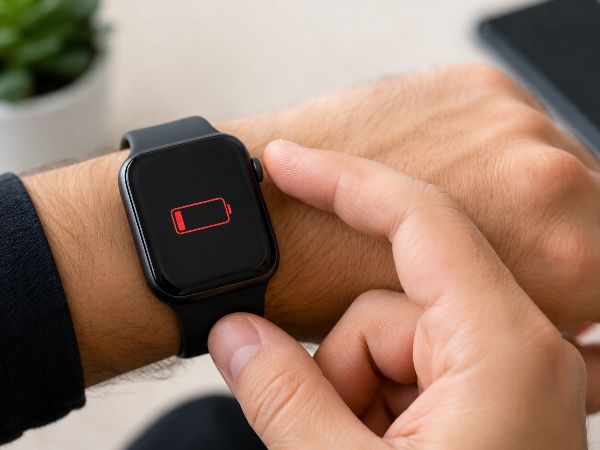
You strap on your Apple Watch in the morning, ready to conquer the day. But by lunchtime, you glance down only to realize the battery icon is flashing an angry red. Sound familiar? If your Apple Watch battery is draining fast, you are far from alone.
Following the rollout of watchOS 12, an influx of tech enthusiasts and everyday users have noticed their smartwatches burning through juice at an unprecedented rate. Background system indexes, active sensor tracking, and unoptimized features can quietly bleed your battery dry.
Fortunately, you do not have to live with a dead wrist or resort to turning your premium smartwatch into a blank screen. By tweaking a few under-the-radar toggles, you can reclaim your battery life.
Key Takeaways at a Glance
| Hidden Setting / Issue | What It Does | Power Saving Impact |
| Background App Refresh | Stops non-essential apps from constantly pinging data. | High (Saves passive idle drain) |
| Live Activities | Disables real-time, minute-by-minute widget updates on your watch face. | High (Prevents continuous processing) |
| Wake Duration | Drops screen awake duration from 70 seconds down to 15 seconds. | Medium (Saves screen-on time) |
| Workout Sensor Throttling | Takes fewer GPS and heart rate readings during long outdoor exercises. | Very High (For athletes and runners) |
| Environmental Noise Monitoring | Stops the microphone from constantly measuring decibel levels. | Medium (Reduces passive microphone use) |
Why Is Your Apple Watch Battery Draining Fast?
Before altering your settings, it helps to understand why your wearable is struggling. When an Apple Watch experiences rapid battery drain, it is usually caused by a combination of two things: software overhead and hardware aging.
Every major operating system update triggers intensive background maintenance tasks, such as database re-indexing and file syncing. Furthermore, if you are using an older model like a Series 6 or Series 7, your battery’s chemical components have degraded over time.
According to Apple’s Battery Performance Documentation, lithium-ion batteries become less effective as they chemically age, decreasing their overall capacity and peak power delivery. When your watch has to fight a weak cellular connection or process live updates on top of an older battery, a rapid decline in daily runtime is inevitable.
To see exactly where your hardware stands, open the Settings app on your watch, scroll down to Battery, and tap Battery Health. If your Maximum Capacity is below 80%, the system will recommend a service, and physical degradation is likely the primary culprit. However, if your capacity is healthy, the issue is almost certainly driven by software settings.
10 Hidden Settings to Save Apple Watch Power
Let’s dive into the core adjustments that will help bridge the gap between a dead watch and true multi-day battery life.
1. Disable Background App Refresh
Just like your iPhone, your Apple Watch allows apps to fetch fresh content in the background so they are ready the instant you open them. While convenient for news or stock trackers, having dozens of apps quietly pinging servers all day is a massive power draw.
- How to fix it: On your watch, navigate to Settings > General > Background App Refresh and toggle the master switch off entirely, or manually disable it for apps you rarely open.
2. Turn Off “Allow Live Activities”
Introduced to make glances more dynamic, Live Activities keep active widgets—like real-time sports scores or ride-sharing arrivals—constantly spinning on your watch face. This forces the processor to work continuously.
- How to fix it: Open the Watch App on your iPhone > My Watch > Live Activities and turn off the toggle.
3. Shorten the Wake Screen Duration
When you tap your watch face to check a notification, how long does the screen stay lit? By default, watchOS often leaves the screen active for longer than necessary, consuming valuable milliwatts.
- How to fix it: Go to Settings > Display & Brightness > Wake Duration and select “Wake for 15 Seconds” rather than 70 seconds.
4. Moderate “Wake on Wrist Raise”
The accelerometer inside your Apple Watch is highly sensitive. If you drive down a bumpy road, type aggressively, or gesture with your hands while speaking, your watch screen may turn on hundreds of times a day without you realizing it.
- How to fix it: Go to Settings > Display & Brightness and turn off Wake on Wrist Raise. To wake your watch, simply tap the screen or turn the Digital Crown.
5. Throttling Sensors with “Fewer GPS and Heart Rate Readings”
If you are an avid runner, hiker, or cyclist, the continuous firing of the optical heart rate sensor and GPS can drain 15% to 20% of your battery in a single session. You can limit this consumption without giving up your workout tracking.
- How to fix it: Go to Settings > Workout and turn on Fewer GPS and Heart Rate Readings. This tells the watch to take periodic samples rather than a non-stop data stream, extending your battery life during long endurance training.
6. Turn Off Environmental Noise Measurements
Your Apple Watch constantly samples ambient decibel levels via its microphone to protect your hearing from loud environments. While a valuable safety feature, keeping the microphone circuit open uses passive energy.
- How to fix it: Open Settings > Noise and disable Environmental Sound Measurements.
7. Clean Up Your Notification Mirroring
Every time your watch buzzes, the haptic engine activates, the screen illuminates, and data moves via Bluetooth. If you are receiving notifications for every promotional email or social media mention, your battery will suffer.
- How to fix it: Open the Watch App on your iPhone > Notifications and scroll down to the “Mirror iPhone Alerts From” section. Turn off alerts for any non-essential apps.
8. Opt for an OLED-Friendly, Minimal Watch Face
Apple Watches feature beautiful Organic Light-Emitting Diode (OLED) displays. Unlike traditional screens, OLED displays do not use a backlight; instead, each individual pixel generates its own light. Crucially, black pixels are completely turned off and consume zero power.
- How to fix it: Swap out graphic-heavy, bright watch faces (like Photos or Activity Analog) for minimal, dark alternatives like Simple, Utility, or X-Large, and customize the complications to use dark themes.
9. Disable “Listen for ‘Hey Siri'”
To respond to hands-free voice commands, your Apple Watch keeps its microphone in a low-power, always-listening state.
- How to fix it: Go to Settings > Siri and turn off Listen for “Hey Siri”. You can still trigger the assistant by holding down the Digital Crown when needed.
10. Trim Haptic Feedback Intensity
The Taptic Engine is a physical motor that moves back and forth to create vibrations on your wrist. Running this mechanical component at maximum intensity for every text, timer, and ring goal draws measurable power.
- How to fix it: Navigate to Settings > Sounds & Haptics. Scroll down to Haptics and switch the setting from Prominent to Default.
When Settings Aren’t Enough: The Forced Reset Fix
If you have adjusted your settings and your battery is still plunging unexpectedly, you may be dealing with a stuck software process or corrupted cache file from your latest watchOS update. Before unpairing your watch entirely, try a Forced Restart.
How to Force Restart: Press and hold both the Digital Crown and the Side Button simultaneously. Keep holding them down for at least 10 seconds until the screen goes black and the Apple logo reappears.
This forces the operating system to clear its active RAM memory and stop any rogue background applications that are looping and causing excessive heat or battery drain.
Frequently Asked Questions
Does Always-On Display drain a lot of battery?
Yes. Although Apple uses advanced display technology to drop the screen refresh rate to 1Hz (updating just once per second) when your wrist is down, keeping the screen illuminated still accounts for a notable portion of daily power consumption. Turning it off via Settings > Display & Brightness > Always On can add hours of use to your day.
Why did my battery life get worse right after a watchOS update?
This is normal behavior for the first 48 to 72 hours. Following an update, your watch reconstructs system databases, re-indexes local files, and updates app data in the background. Give the system a few days to settle down before assuming something is broken.
Is it safe to leave Low Power Mode on all the time?
It is safe, but it changes how your watch functions. Low Power Mode turns off Always-On display, limits Wi-Fi and cellular connections, and halts background heart rate and blood oxygen readings. While it is excellent for travel, keeping it on permanently removes many of the health monitoring features that make the Apple Watch distinct.
Does keeping Bluetooth on my iPhone help the watch battery?
Counterintuitively, yes. Disabling Bluetooth on your iPhone forces your Apple Watch to connect directly to local Wi-Fi networks or cellular towers to receive notifications. Wi-Fi and cellular radios consume far more power than the energy-efficient Bluetooth connection to your phone. Always keep Bluetooth active on your iPhone for the best wearable performance.
Contact Phonebulance today for a professional diagnostic and get your device working like new again!


Phonebulance is your one-stop center for all things smartphone! Whether you’ve cracked your screen, dropped it in water, or it’s simply acting sluggish, our certified technicians can diagnose and fix a wide range of issues.
Contact us today or make an online appointment to learn more about our services and keep your smartphone connected and functioning like new!
Here is the list of our smartphone repair services:
- Apple iPhone
- Apple Watch
- Apple iPad
- Apple iPod
- Samsung Galaxy S Series
- Samsung Galaxy Note Series
- Samsung Galaxy Tab
- Google Pixel and Nexus
- OnePlus
- Other brands (LG, Motorola, HTC, Blackberry…)
Here is the list of our repair and fixing prices:
- iPhone LCD Screen Replacement
- iPhone Charging Port Replacement
- iPhone Battery Replacement (High Capacity)
- iPad Screen Replacement
- iPhone Back Camera Lens Replacement
- iPhone Rear Camera Repair
- iPhone Back Glass Repair Cost
Service Areas in Orange County South:

0 Comments